
Communication channel

Route customer email to the right agent

iService® turns your customer-facing mailboxes into a consistent workflow. Each customer email is assigned to the right agent at the right time.

Envelopes arriving on one run and turned at a sorting junction onto separate runs into the queues of the agents matched to them

An assigned agent and service level for every email

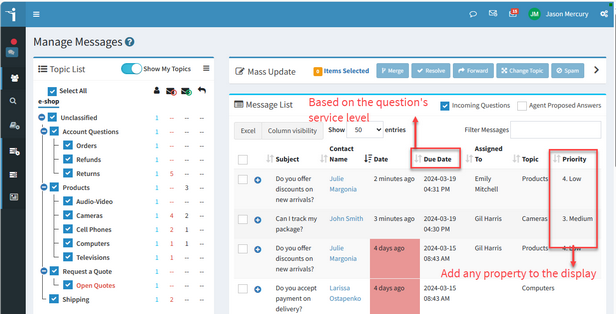
Every customer email is queued by topic and routed to an agent with the required skills, under the service level you set. Each customer receives an acknowledgment from the sender address you choose. Agents get an alert when an email arrives and again when it stays unresolved. Supervisors see the email queues, service-level colors, and agent workloads in real time.

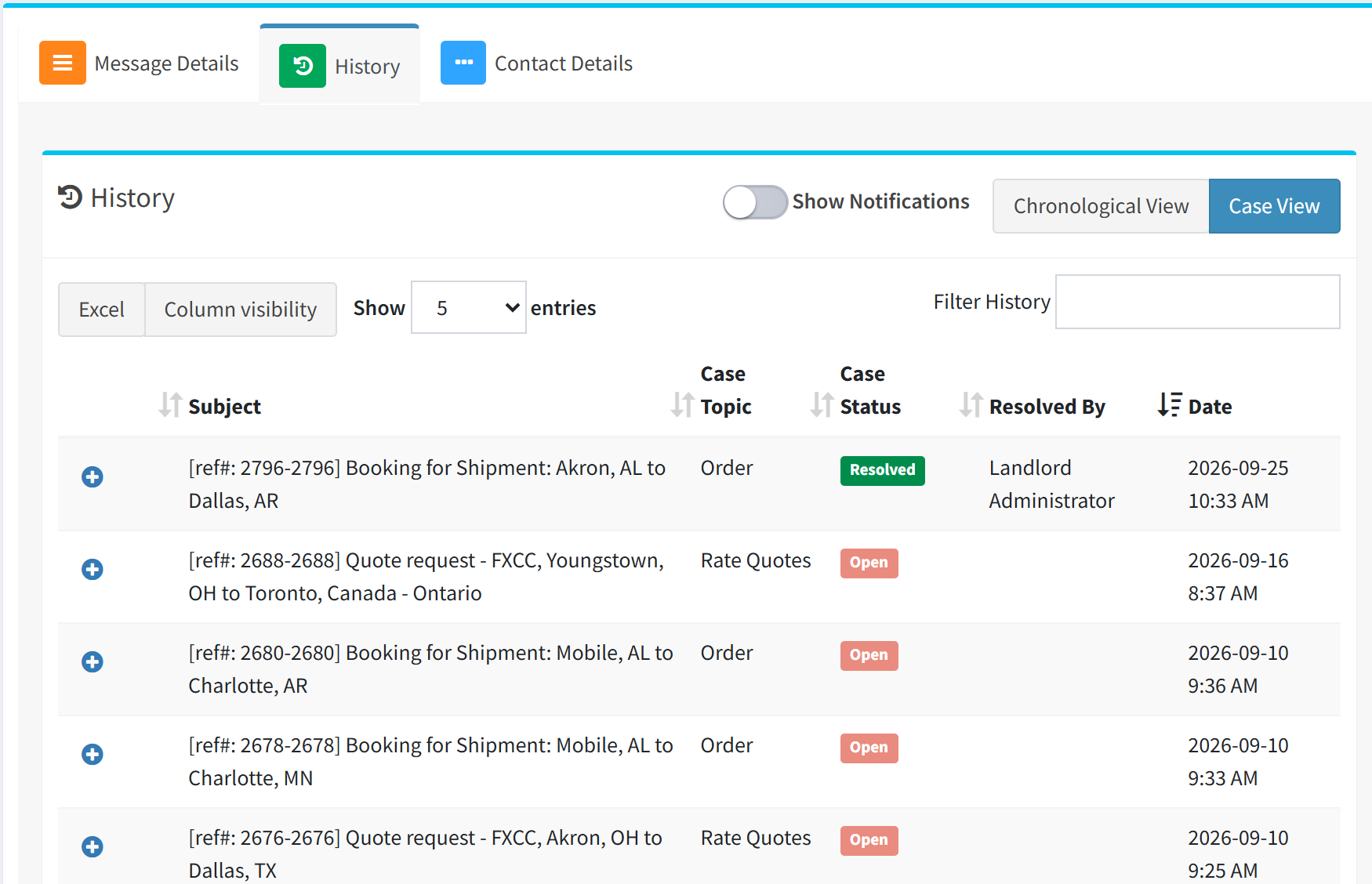
A newly arrived message resting with its earlier exchanges already attached beside it
iService Manage Messages showing queued interactions grouped under the topic tree

Filters that route email by content and sender

iService retrieves email from your mailbox and checks each message against your filters. A matching filter assigns the email to a topic, and Workflow Automation routes it to the Answer Panel of an agent who handles that topic.

A filter matches text in the subject, body, sender, recipient, contact properties, or a text attachment. Each filter is a regular expression, a text pattern, so one filter matches any order number in a subject line. A filter on the sender’s domain assigns every email from one company to a single topic.

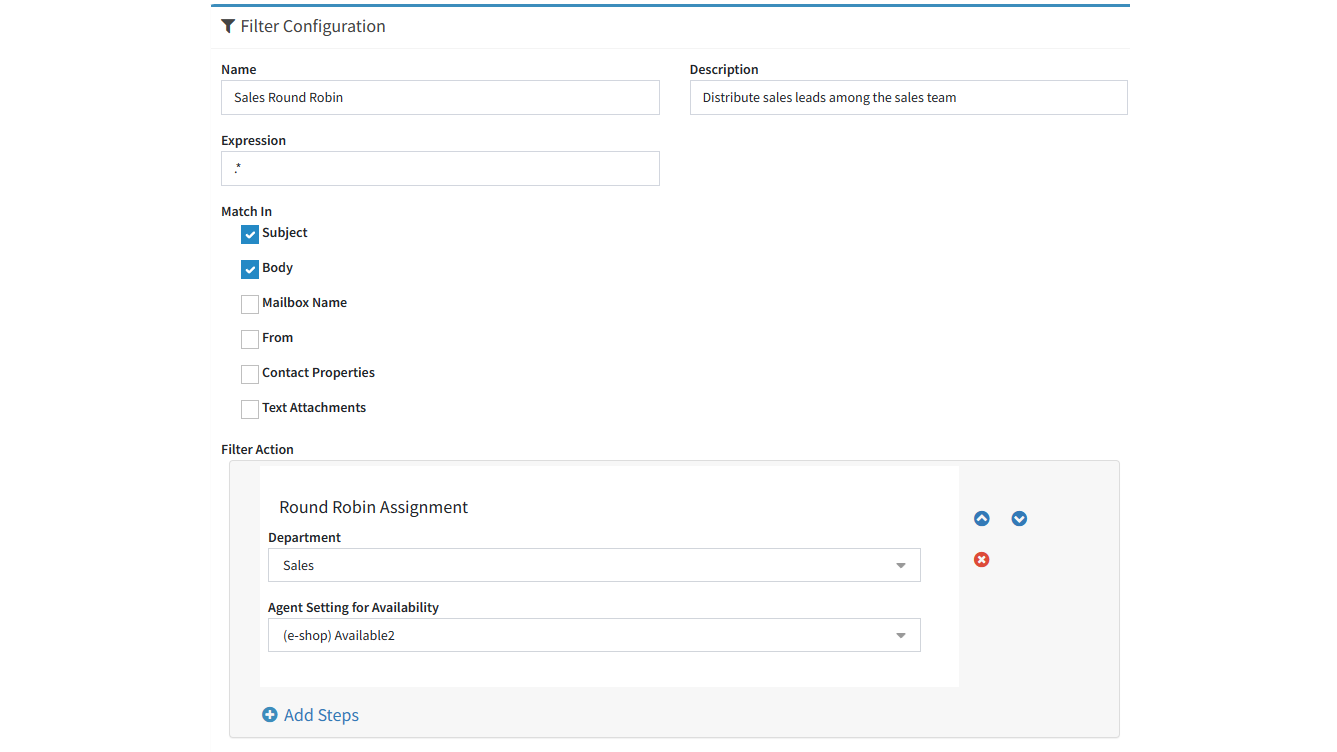
Round Robin Assignment filter with the department and agent availability property selected

A billing question from mailbox to reply

A customer emails your support address to ask why an invoice total changed.

iService retrieves the email from your support mailbox and converts it into an interaction. A filter assigns it to the billing topic, which generates an acknowledgment to the customer. The question is assigned to an agent with billing skills, whose Answer Panel shows the invoice fields and a billing stock response. The agent edits the response and replies.

Customer email as service interactions

iService turns each customer email into an interaction linked to the contact and the topic, with its own properties and history.

A shared inbox holds messages. An interaction also records who the customer is, what the request is about, and every reply since. Segment access controls which business units see it. Agents can answer a customer by replying to the notification email they receive, and iService applies the response to the original interaction. An invited expert without an agent account answers the question through an emailed External Answer page link.

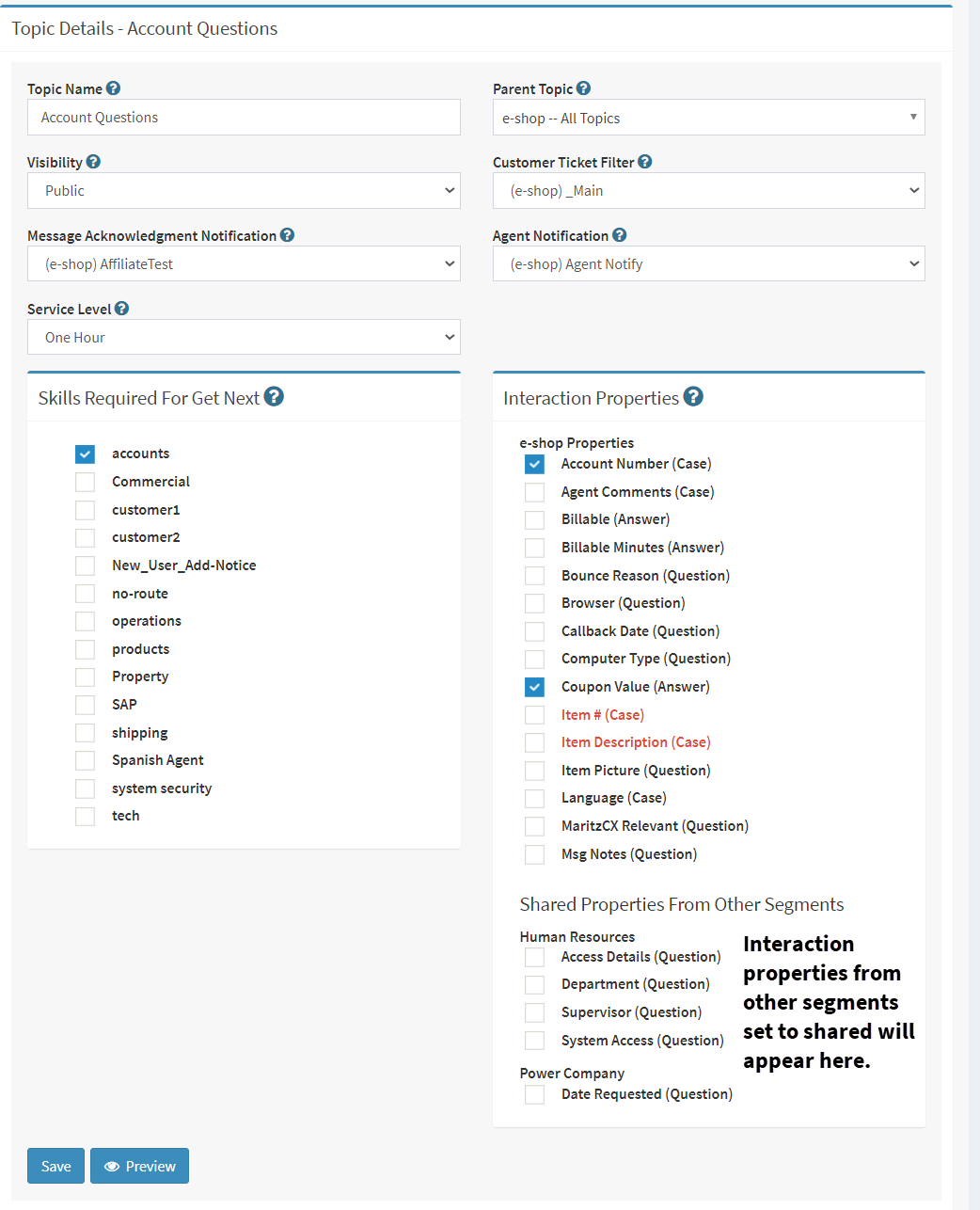
An iService topic configured with the settings that route mail arriving for it

Convert your support email into a powerful messaging system

iService adds routing, properties, and interaction history to your existing support mailbox.

Web-form requests queue beside email and route by the same skills. Each customer reply threads by reference into the contact and case history, so an agent reads the whole exchange in one place.

iService My Message Inbox showing a customer message beside the interaction history panel.

iService features on this page

  • Matches based on multiple elementsIdentify questions by content within subject, body, to, from, contact properties, or text attachments.
  • Regular expression matchingUse full regular expression matching to identify filter patterns.
  • Filter actions availableChange topic, save value to interaction property, make question part of existing case, assign to agent via round robin, send notification template, resolve the interaction, run a webhook, call other filters (more actions can be made available).
  • Group filtersPlace filters into groups with the option to stop evaluation with the first match, or process all filters in a group. Groups can be embedded into other groups.
  • Default queue for mailboxesEach mailbox has a default topic, eliminating the need for workflow rules.
  • Mailboxes configured by SegmentEach segment (business unit) has their own mailbox configuration.
  • Limit based on segment accessSegment (business units) access limits the interactions available to agents.
  • Forward to segmentForward a question to another segment, and select a new mailbox. The filters associated with the mailbox are then processed.
  • Skills based routingMessages are assigned using a skills-based routing method that does not require workflow rules.
  • Assign skills with departmentsSkills can be assigned directly to agents, or inherited through department membership.
  • Skills based on question propertiesUse question properties, such as language, to segregate questions within topics / queues for specific agents.
  • Intelligent assignment by user typeRestrict available agents to those that have appropriate skills for a question. Managers can have the ability to assign any agent with segment access.
  • Make question part of existing caseWhen a question has a property value that matches an existing case (e.g., order number), make the new question part of that existing case even though there is no reference number in the question. This will then make the case operator the operator for the new question.
  • ACD style assignmentAssign questions to agents only when they are ready, using a process similar to a telephony ACD.
  • Assign based on service levelThe ACD routing automatically assigns the question with the most urgent service level. Service levels can be by business segment, topic/queue (support vs sales), interaction property (e.g., urgent question), or contact property (e.g., platinum customer).
  • Round robin assignmentAssign messages to agents using a round-robin approach to balance the workload (for example, to distribute sales leads evenly).
  • Get all on Get NextGet Next action assigns all question submitted by the same contact. This ensures agents get the complete question if the contact sent two or more emails.
  • Route replies to original agentRoute customer replies to the agent that handled the original question.
  • Custom agent notificationsNotify agents via email when questions become available that match their skills. Allow them to answer via the email notice. Can be controlled by topic and agent.
  • Empty InboxQuestions are unqueued when agent logs out, and new questions can't be assigned until they are logged in.
  • Requeue questions that get oldWhen a question hits an age threshold, change its topic for escalation.
  • Set properties on questions that get oldWhen a question hits an age threshold, set a property value that can be used for reporting or skilling the question.
  • Directly requeue questionsChange the topic of a question to any topic in the tenant. This avoids filter processing and leaves the question assigned to the agent. If the topic is in a new segment, the segment default mailbox becomes the new recipient.
  • Retain work in progressWhen a question is reassigned, provide the unsent draft answer created by the old agent to the new agent.
  • Never auto assignA switch on the Agent Admin page stops iService from assigning interactions to an agent automatically, including replies to answers that agent sent. Set it for managers who answer questions only occasionally.
  • Reopen a questionThe Reopen Question button in the More Actions menu reopens a resolved question and assigns it to the agent who reopened it.

See email routing in iService

Request a demo to see iService retrieve a customer email, route it by topic to an agent, and open it in that agent’s Answer Panel.

Request a Demo

Chat with support