
Platform

Monitor queues and agents in real-time

iService uses live WebSocket updates to show the real-time status of message queues and agents in a single page.

An interaction advancing through route, guide, and observe stages that loop back

Live queue conditions

Support supervisors manage queue depth, agent availability, and ageing work during active shifts.

iService shows queue depth, agent availability, and ageing work while customer messages arrive and move. Supervisors see current conditions across active queues. The live view identifies backlog and workload conditions while supervisors can assign work.
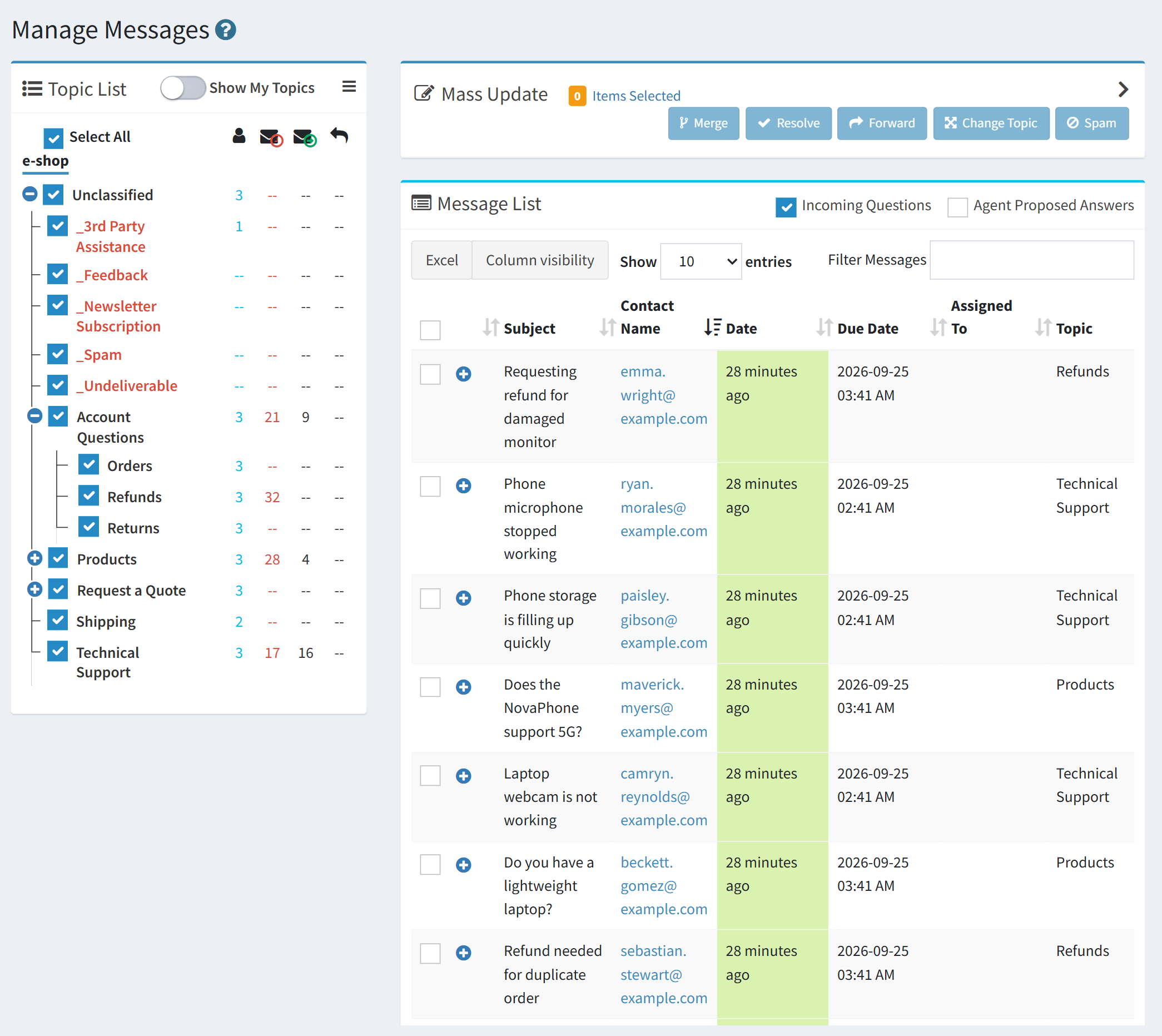
iService Manage Messages screen with a topic list showing queue counts per topic beside a message list of incoming questions with age, due date, and topic

Active service operations

Service operations managers act on service levels and workload while queues change.

iService shows current queue and agent signals for supervisors who manage service levels during an active shift. Reports remain available for analysis after the work is complete.

The iService logged-in email agents list showing who is available to take work

Live WebSocket queue updates

Live queue management uses current queue, agent, and ageing-work signals.

iService uses live WebSocket updates to keep queue depth, agent availability, and ageing work current. New messages, assignments, and resolutions update the operating view as they occur. Supervisors see when a queue grows, an agent becomes available, or an item ages. The same view shows the current state of customer work throughout the shift.

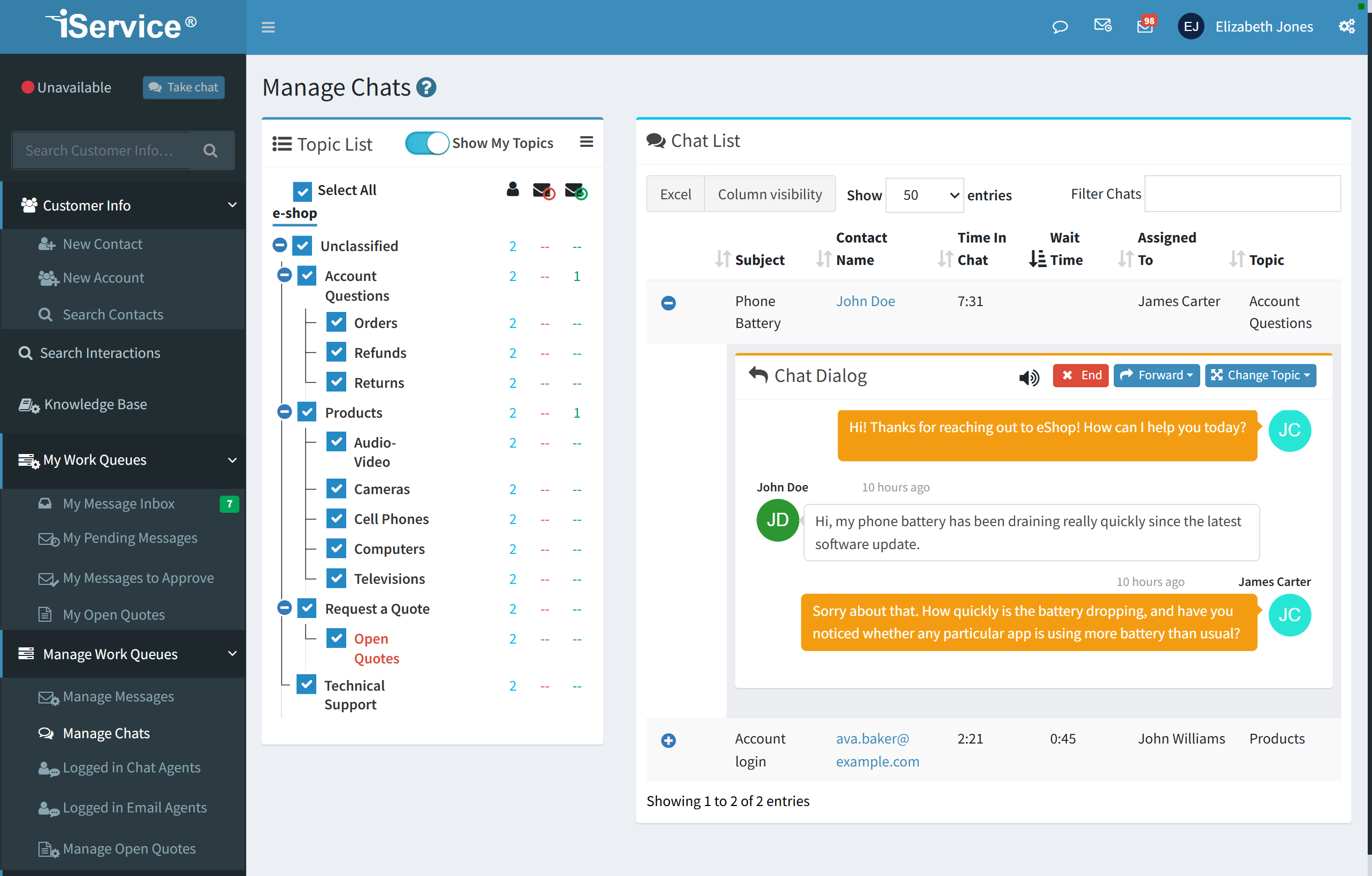
iService Manage Chats screen with per-topic queue counts beside a chat list showing time in chat, wait time, and assigned agent, with an open chat dialog

Rebalance a queue during the shift

An ageing message, agent workload, and assignment decision determine queue action during a shift.

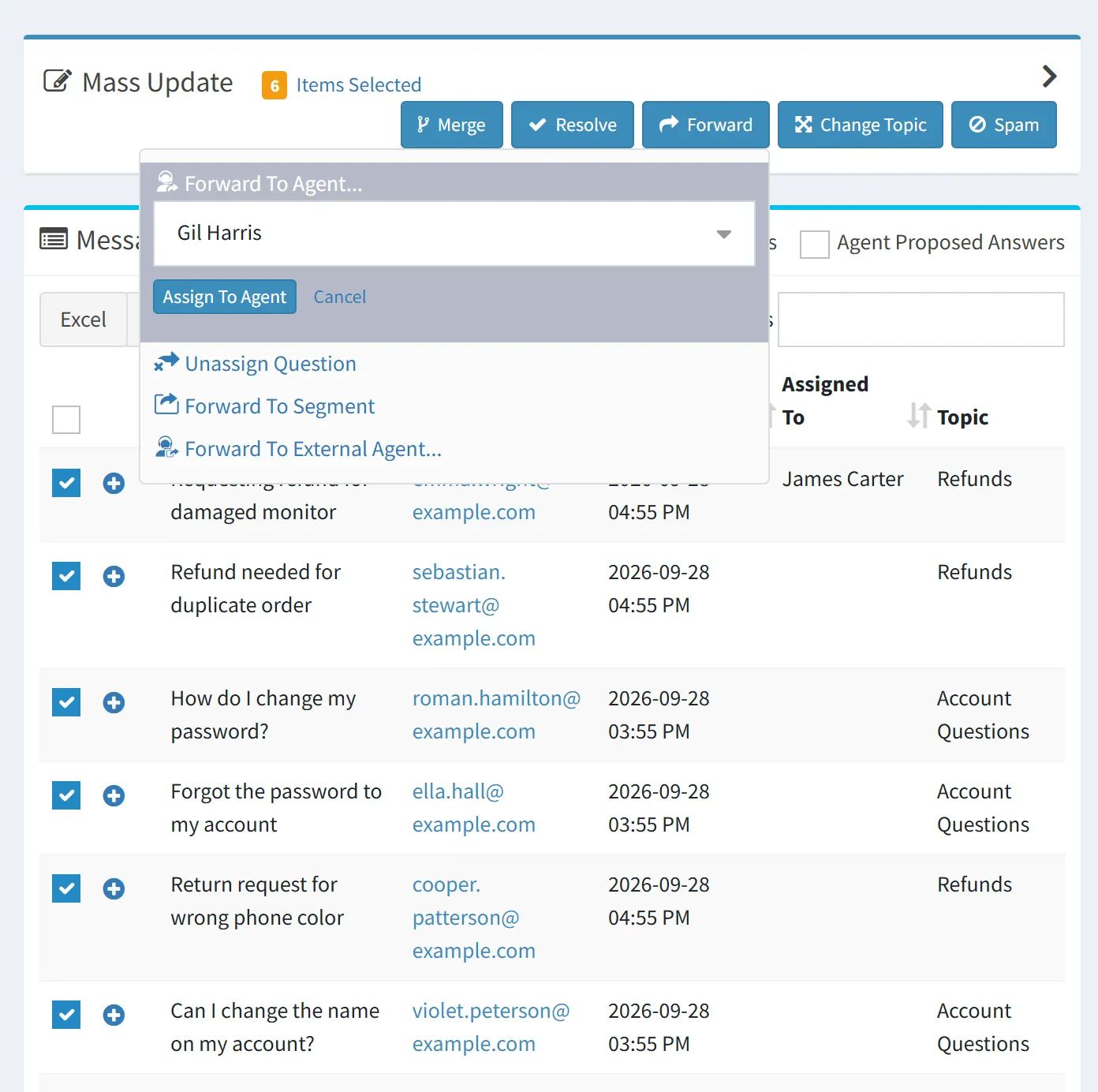
A supervisor sees an ageing message in the queue and checks the current agent workload. The supervisor assigns the item to an available agent from the queue view. As the message moves through the workflow and resolves, iService updates the queue count. The supervisor follows the ageing item, assignment, and resolution in the same operating view.

iService Mass Update with six queued messages selected and the Forward To Agent menu open to assign them to Gil Harris

Spot idle agents before your queue backs up

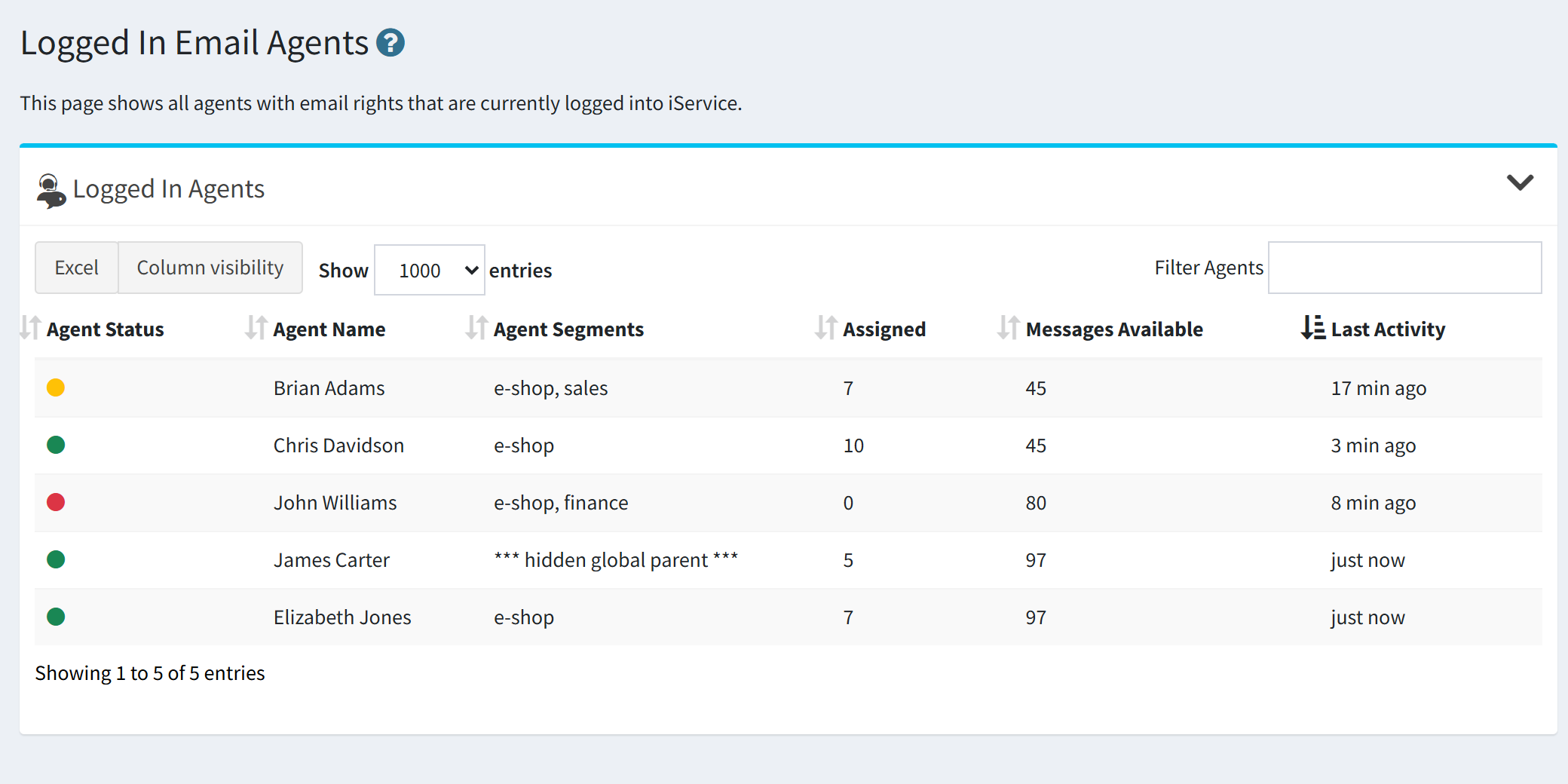
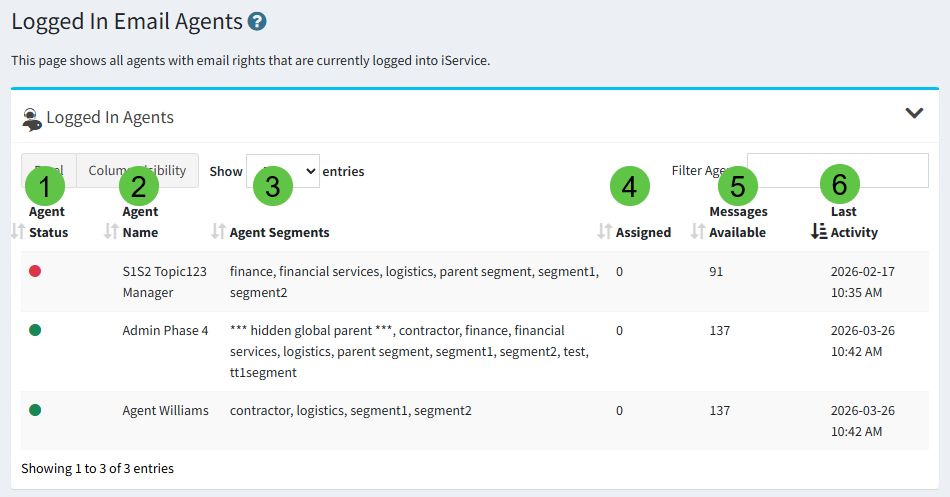
The iService Logged In Email Agents page shows which agents are working and which have stalled, while the shift is running.

When messages pile up but your team shows as available, iService shows you who has stopped working. Every logged-in agent gets a color: green when they have work and are active, yellow when assigned work sits idle for more than 10 minutes or an active agent has nothing assigned, and red when an agent has no messages and no activity for two minutes. Each row lists the agent's segments, assigned count, messages available, and time since last action. You can check whether an idle agent lacks the segment access or skills to take the waiting work, fix it, and get messages moving again before they age.

iService Logged In Email Agents page with color-coded agent status, agent segments, assigned count, messages available, and last activity for five agents

Queue assignment controls

Supervisors assign ageing work while they monitor active queue and agent conditions.

iService pairs live queue and agent views with assignment controls. Supervisors assign ageing work and rebalance workloads in the same operating workflow. Queue counts update as assigned work moves to resolution.

See real-time operations in iService

iService shows queue depth, agent availability, ageing work, and assignments as customer work moves.

Request a Demo

Chat with support