
Platform

Workflow automation with Answer Panels

Guide agents through each service request with workflows that define what information to collect, decisions to make, and actions to take from intake through resolution.

A workflow advancing an interaction with a contextual answer panel alongside

Build guidance directly into each workflow

Keep agents working from the right information by building approved guidance directly into the workflow they follow.

Each step presents the relevant content, actions, and decisions at the right point in the request. With guidance built into the workflow, teams no longer need to maintain separate instructions that can become outdated or disconnected from the process. iService keeps customer forms and agent assistance aligned within the same workflow from start to finish.

Three controls select the experience
  1. TopicMatch a known request category
  2. TagMatch system-managed context
  3. Topic + tagRequire both conditions

Answer Panel interaction controls

Give agents the right information and controls for the request they’re handling.

Answer Panels present the approved content, decisions, and actions that apply to each request. As agents respond, iService captures the required interaction details, updates properties, and triggers the next workflow action. Workflow owners define these controls for each request path, helping agents follow the right process and move each request forward.

An interaction advancing through configured workflow states beside a guiding answer panel

Answer Panels for each request type

Give agents guidance and controls that match the specific request they’re handling. Based on the topic, tag, or a combination of both, iService displays the appropriate Answer Panel with the relevant content, decisions, and actions. Agents get a process tailored to the request in front of them, while the workflow keeps both agent and automated actions moving along the defined path.

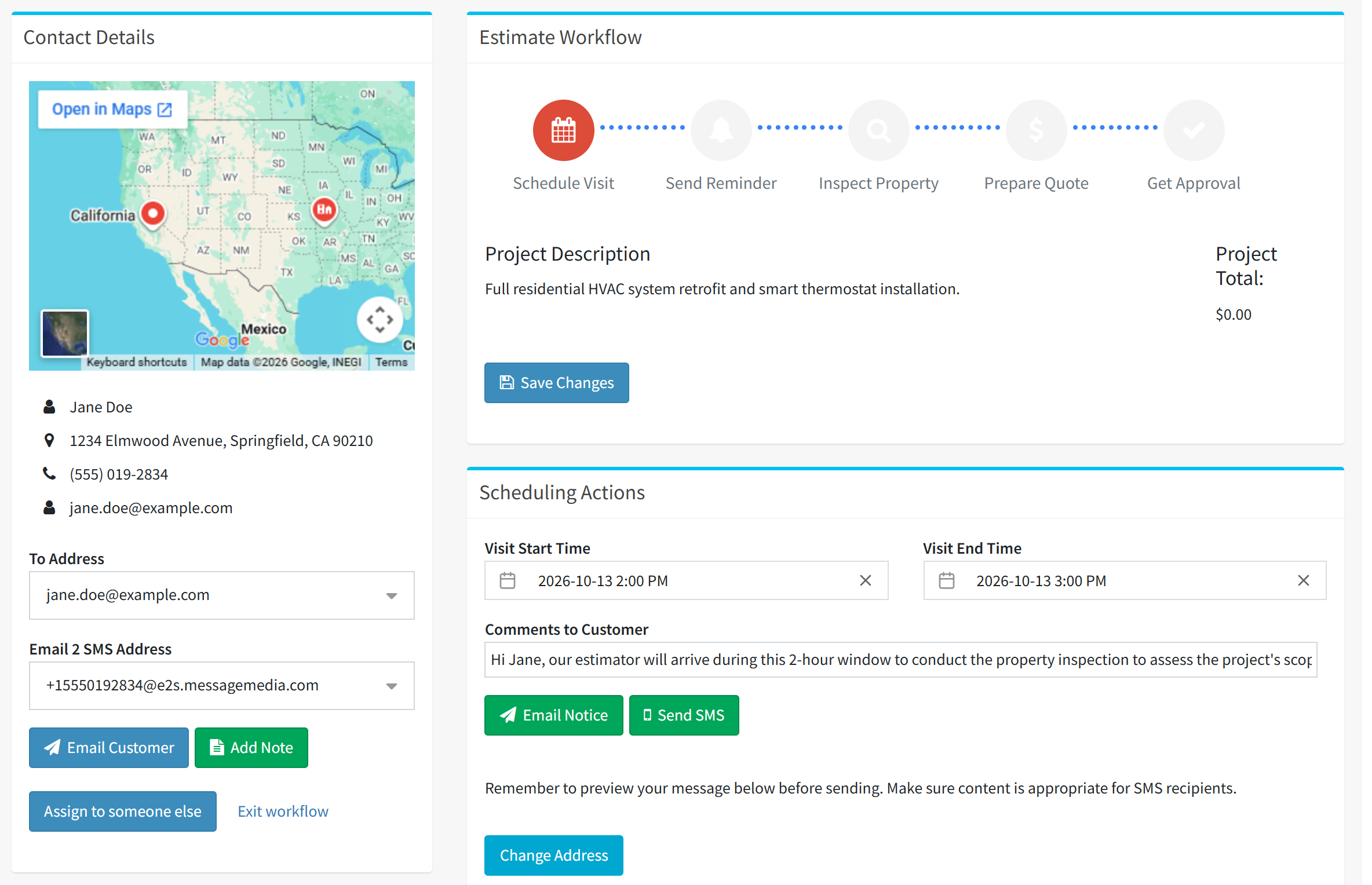
iService answer panel for a field service estimate, showing the steps from scheduling the visit to approval, a map of the customer address, and buttons to email or text the customer
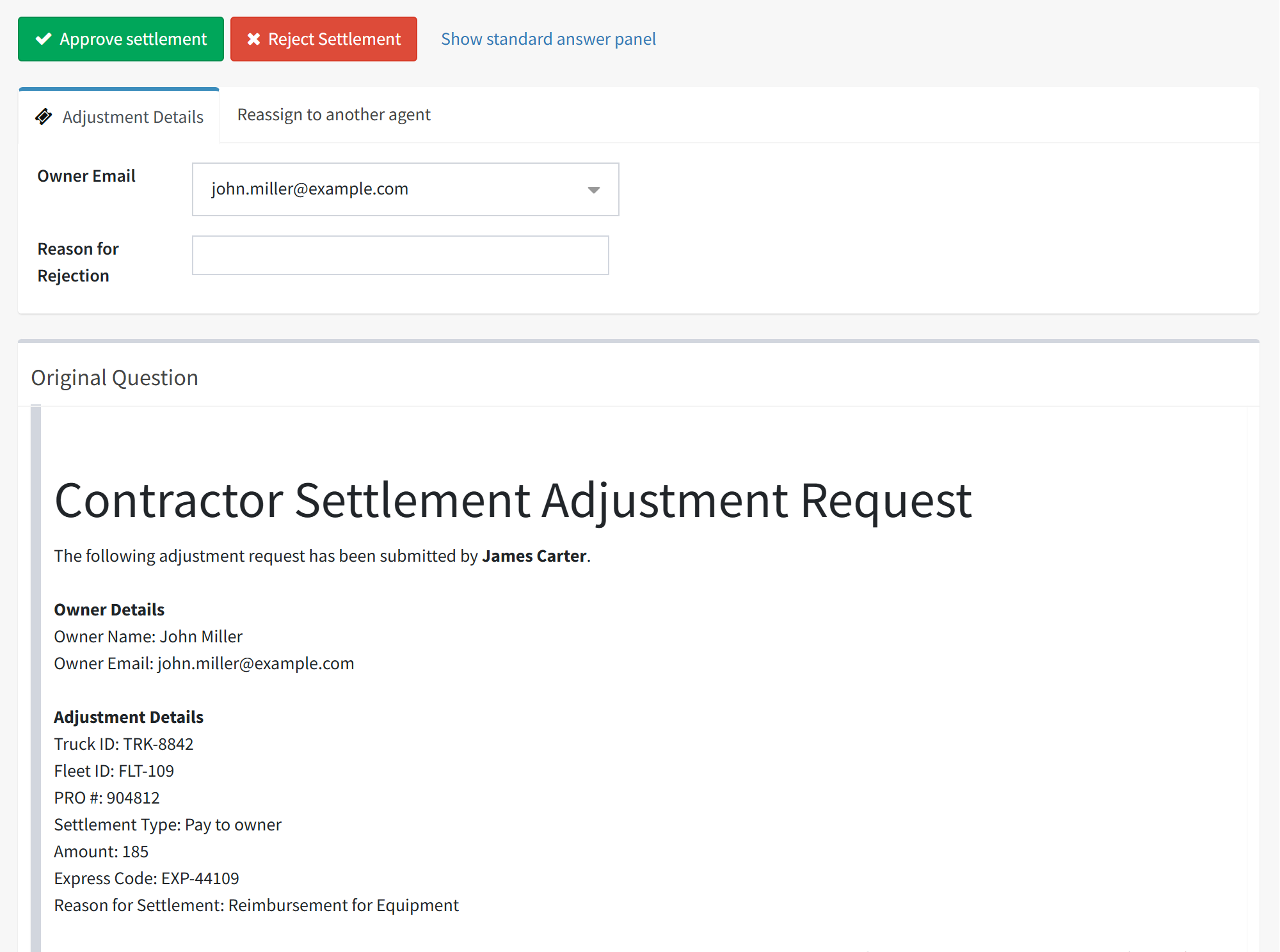
iService answer panel for a contractor settlement adjustment request, with buttons to approve or reject the settlement
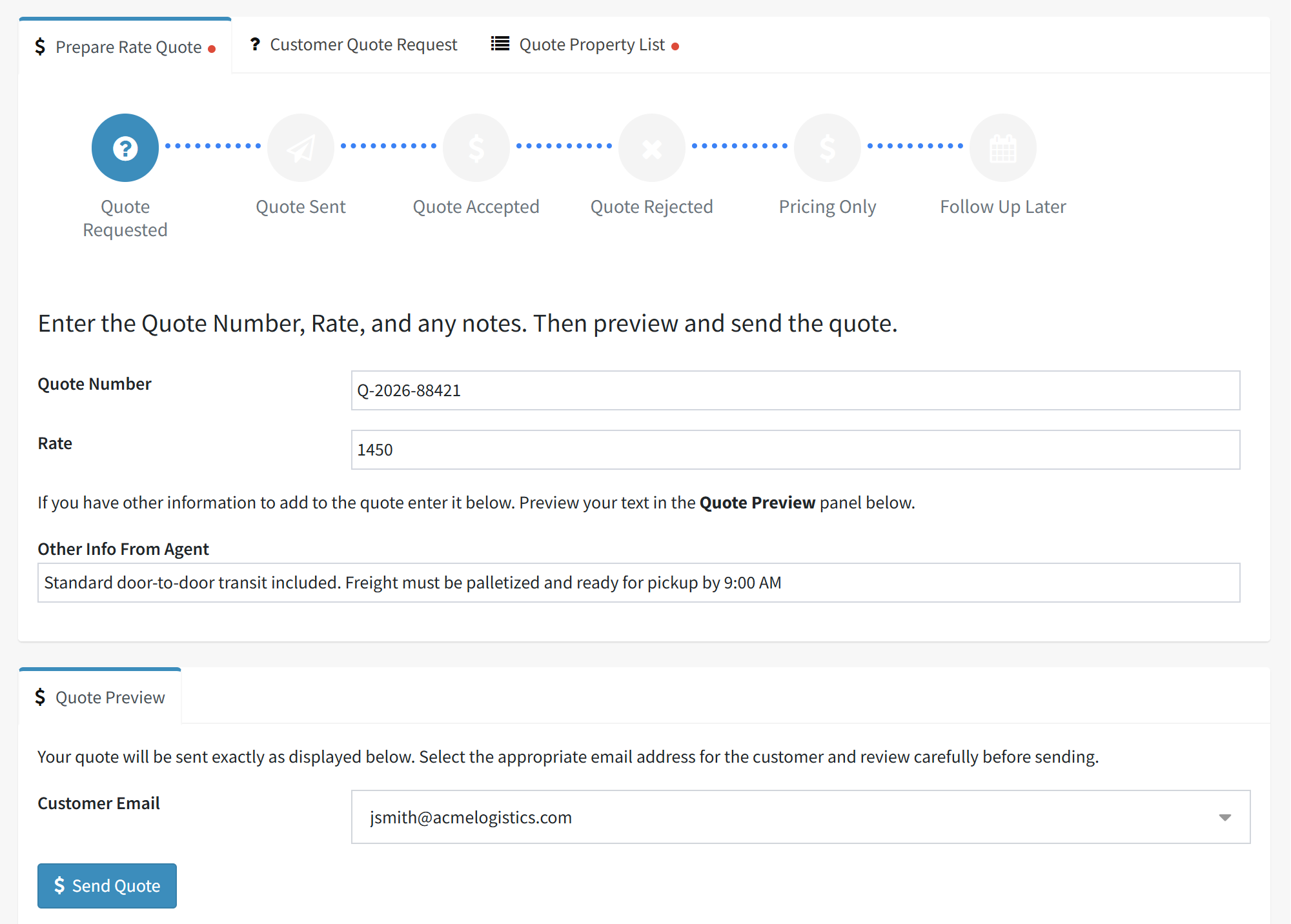
iService answer panel for preparing a rate quote, with fields for the quote number, rate, and notes, and buttons to preview and send the quote

One workflow for automation and agents

Keep automated actions and agent-assisted work moving through the same defined process.

A single iService workflow coordinates both, so Submit Panel and Answer Panel actions stay connected to the request path. One action can trigger multiple steps, such as creating a ticket, sending an acknowledgment, or updating interaction details. Approved guidance and automated actions remain aligned throughout the workflow, helping teams manage each request consistently from start to finish.

A support agent at a monitor showing one workflow in which automated steps and the agent's own step run in the same sequence

iService features on this page

  • Workflow builderCreate and change a workflow in a visual editor. No deployment and no engineering request.
  • PanelsA panel is one screen of a workflow. It holds the inputs the person fills in and the actions it runs.
  • Submission panelsBuild the form a customer or agent submits, with the fields and validation you choose.
  • Answer panelsBuild the panel an agent answers from, including the original question, the draft, and the send buttons.
  • Panel actionsEach panel runs a list of actions when it is submitted. Add, remove, and order them in the editor.
  • Submission actionsSet contact and interaction properties, email the customer, or create a ticket when a form is submitted.
  • Answer actionsSave a note, assign to an agent, change the topic, or send and resolve, from one answer panel.
  • Panel elementsDrag headings, HTML, buttons, tabs, and inputs onto a panel to lay out the page.
  • Page structureGroup inputs into tabs and sections, and add your own HTML between them.
  • Panel inputsText, rich text, uploads, agent pickers, email addresses, SMS opt-in, and property fields.
  • Conditional displayShow or hide an element based on a property value, a variable, or who is viewing the panel.
  • Workflow mappingMap a panel input to the contact property, interaction property, or variable it writes to.
  • Workflow variablesHold a value across panels and reuse it in text, conditions, and actions.
  • Custom CSS on customer submit formsAdd your own CSS to any customer submit form. iService places it in the page head, so you enter the rules without a style tag.
  • Bulk skill assignment with calendar schedulingA submit panel with a skill-setting action adds or removes a skill for many agents at once. Run it from calendar events through Zapier and the iService API to change skills on a schedule.
  • Send and resolve to submitterAn option on the Send and Resolve action sends the response to the agent who submitted the ticket instead of the customer the ticket was created for.
  • Set message acknowledgment actionA workflow action sets or removes the default message acknowledgment for a segment, such as an auto-reply outside operating hours. Calendar events and Zapier can run it on a schedule.
  • Payment button in workflow panelsAdd a Payment button to a workflow panel. iService fills the payer name, address, and amount from the interaction properties.
  • Public and private notesPanel actions save a public note, which the contact sees in the customer portal, or a private note, which only agents see. Each note takes an optional tag.
  • Original question and attachmentsThe Original Question element shows the question as it was submitted, and the Question Attachments element lists its files with names and file-type icons. Place either one anywhere in an answer panel.
  • Input sizingsSet each input to a full-width or half-width column so two inputs sit side by side, set the width of the input itself, and fix a width that stays the same on small screens.
  • Conditional actionsTurn on Run Conditionally for a workflow action and it runs only when a property of the interaction, case, customer, or submitter meets your condition, so one workflow handles different requests differently.
  • Prevent the requester from being an approverThe Agent Signing action records the agent who clicks Approve and the time, and stops an agent from approving a request they created.

See your workflow in iService

See a routine request move through the workflow definition your team uses, with approved guidance, panel decisions, and configured actions.

Request a workflow demo

Chat with support