

In a contact center, incoming email messages fly along separate paths, each landing with the agent responsible for it.

Platform

Route work to the right person at the right time

iService uses skills-based routing to send each incoming request to an agent or team with the matching skills. You shape queues by segment, topic, and workflow state, while supervisors and operations managers keep direct control of unresolved requests.

Rebalance queues by changing skills

Changes to an agent's skills take effect immediately, so you rebalance queues without reassigning requests one by one. A Zapier automation can change skills on a schedule, for example to shift agents onto weekend coverage.

Arriving work directed by an overhead sorting junction into the holding column it belongs in, with each team working its own full column

Skills-based routing

Skills-based routing sends each request to an agent whose skills match it, in Service Levels priority order. Alerts check your topics on a schedule, such as hourly, and act on requests not resolved in time: they can change the topic or round-robin assign the request to an agent.

Get Next queue assignment

Agents need the next Message Queue request that matches both their Skills and its Service Levels priority.

An agent selects Get Next in My Message Inbox. iService checks Message Queue for the next eligible request by Service Levels priority and matching Skills. It assigns that request to the agent and opens it in My Message Inbox. The agent starts work from the request selected for their skills and queue priority.

iService My Message Inbox showing the Get Next button above the agent's queued interactions

Queue structure

A flat shared inbox mixes every request together, regardless of the team, topic, or workflow state that should own it.

iService shapes queues by segment, topic, and workflow state, rather than putting every request in one flat shared inbox.

A work item moving through classify, qualify, and own stages along a routing track

Supervisor routing control

iService keeps direct assignment control with your supervisors and operations managers. They assign unresolved requests themselves while skills-based routing handles routine work.

A supervisor placing flagged unresolved requests onto specific agent seats while routine requests route themselves onto the rest.

iService features on this page

  • Default queue for mailboxesEach mailbox has a default topic, eliminating the need for workflow rules.
  • Limit based on segment accessSegment (business units) access limits the interactions available to agents.
  • Assign skills with departmentsSkills can be assigned directly to agents, or inherited through department membership.
  • Skills based routingMessages are assigned using a skills-based routing method that does not require workflow rules.
  • Skills based on question propertiesUse question properties, such as language, to segregate questions within topics / queues for specific agents.
  • ACD style assignmentAssign questions to agents only when they are ready, using a process similar to a telephony ACD.
  • Round robin assignmentAssign messages to agents using a round-robin approach to balance the workload (for example, to distribute sales leads evenly).
  • Get This optionAllow agents with appropriate access rights to take ownership of any unanswered question.
  • Require Get Next for CSRsRequire the Get Next button for support reps to ensure they don't cherry pick questions to answer from manage messages.
  • Route replies to original agentRoute customer replies to the agent that handled the original question.
  • Assign based on service levelThe ACD routing automatically assigns the question with the most urgent service level. Service levels can be by business segment, topic/queue (support vs sales), interaction property (e.g., urgent question), or contact property (e.g., platinum customer).
  • Retain work in progressWhen a question is reassigned, provide the unsent draft answer created by the old agent to the new agent.
  • Get all on Get NextGet Next action assigns all question submitted by the same contact. This ensures agents get the complete question if the contact sent two or more emails.
  • Empty InboxQuestions are unqueued when agent logs out, and new questions can't be assigned until they are logged in.
  • Agent status in menusThe agent status (online, offline, or unavailable) is shown within assignment menu.
  • Forward to segmentForward a question to another segment, and select a new mailbox. The filters associated with the mailbox are then processed.
  • Intelligent assignment by user typeRestrict available agents to those that have appropriate skills for a question. Managers can have the ability to assign any agent with segment access.
  • Directly requeue questionsChange the topic of a question to any topic in the tenant. This avoids filter processing and leaves the question assigned to the agent. If the topic is in a new segment, the segment default mailbox becomes the new recipient.
  • Assign to external agentForward a question to any email address for external agents. Use custom notification templates to inform the external agent who assigned the question and comments from the assigning agent. The external agent is listed as the operator and the status of the question is tracked like any other interaction. The answer is recorded in customer history and attributed to the external agent.
  • Make question part of existing caseWhen a question has a property value that matches an existing case (e.g., order number), make the new question part of that existing case even though there is no reference number in the question. This will then make the case operator the operator for the new question.
  • View available agents for each topicView a count and list of agents available (skilled for the topic and logged in) for each topic.
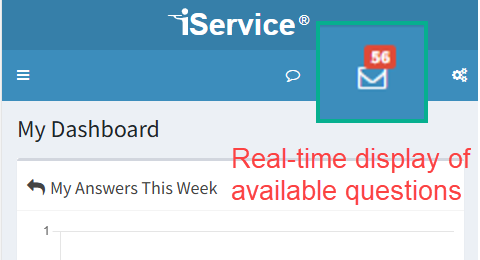
  • Count of queued and unqueued questions by topicThe number of questions unassigned and queued is shown for every topic.
  • Requeue questions that get oldWhen a question hits an age threshold, change its topic for escalation.
  • Skills-based routingUse skills-based routing to assign chats to the right agents using the ACD style Take Chat buttons. Routing follows the same configuration used for messaging.
  • Availability trackingTrack agent availability for each topic based on their skills and chat available status. Publish the status for each topic via iService APIs.
  • Designate chat agentsAssign chat assess as needed based on user types. Agents can handle messaging, chat, or both.
  • Assign chat directlyManagers can directly assign chats to agent from the Manage Chats page.
  • Forward in-progress chatsAgents can forward chats to other agents or place them into the "Unassigned chat" queue.
  • Intelligent chat menuDisplay the status of each topic within the pre-chat survey list of topics. Offer to take a message for topics with no available agents.
  • Single topic chatCreate chat links that are tied to a single topic. This allows you to display online/offline status without the customer needing to click through menus.
  • Monitor agents available by topicManage chats page shows the agents logged in and available for each topic.
  • Managers can take actions on chatsManagers can view the real-time status of all active chats and change their topic, assign them to other agents, or end the chat if abuse is occurring.
  • Abandon the chat queue and leave a messageWhile waiting for an agent to accept their chat, customers have the option to leave a message instead.
  • Chatbot answersA chatbot answers chat questions from your content and hands the conversation to an agent on request.
  • Never auto assignA switch on the Agent Admin page stops iService from assigning interactions to an agent automatically, including replies to answers that agent sent. Set it for managers who answer questions only occasionally.
  • Logged in email agentsA real-time table lists each logged-in agent with their segments, assigned interactions, messages available through Get Next and custom inboxes, and last activity. Green, yellow, and red status shows who is working, who is idle, and who has no work.
  • Manage workflow queuesInteractions that use a custom answer panel move out of Manage Messages onto their own Manage page, shown as a list or as a calendar by a date property.
  • Reopen a questionThe Reopen Question button in the More Actions menu reopens a resolved question and assigns it to the agent who reopened it.

Routing and Workflow Automation

See how Workflow Automation moves requests onward as their workflow state changes.

See Workflow Automation

Chat with support